Log entry
Home Battery Monitor
The Australian Government is currently (2026) providing a Cheaper Home Batteries Program scheme to help with home battery adoption. The more houses that install home batteries, the less pressure there will be on the electrical grid and so hopefully electricity prices will drop for all. Using the program, we added a FoxESS home battery to the house and it has been great: we haven’t needed to draw much electricity from the grid for 4+ months and ended up supplying energy to the grid when the grid needed it. Now that it’s winter in Canberra, Australia (think cold and gloomy), the battery does sometimes run low and during those periods I want to know when it has run out of charge so that I can adjust my usage (e.g. avoid the dryer!).
Note: For those who are interested in getting a battery, it looks like for us the battery will supply the house comfortably for 9+ months of the year, and then reduce the bills for winter. If your winter climate is cold and gloomy like Canberra can be, the grid will still have a use!
FoxESS Battery & Inverter
A home battery comes in different shapes and sizes, depending on the manufacturer, but FoxESS batteries and inverters look something like the following:
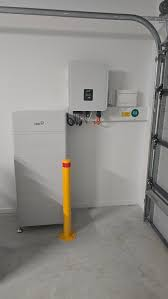
The batteries are stacked next to the yellow safety pole, and the inverter is the smaller box above them. Similar to the Solar PV inverter discussed in Solar PV Viewer, the battery inverter will take the DC stored electricity and convert to AC for use by the house.
So: I’d like to be able to ask the inverter if the battery is empty and if so send me a notification to my phone. How will we make this happen?
Firstly, we are going to need a FoxESS API key
FoxESS has a V1 web portal here: https://www.foxesscloud.com/login
Note: You will want to use their updated V2 portal for day to day use, but for this guide we will want to login to the V1 portal to get an API token. At the time of writing this guide, getting an API key is not obvious in the V2 portal.
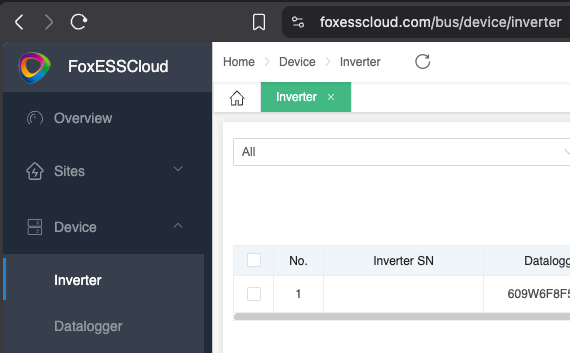
- Navigate to the Inverter area and note down your Inverter SN (Serial Number):
-
After you login, click on the Avatar at the top left:
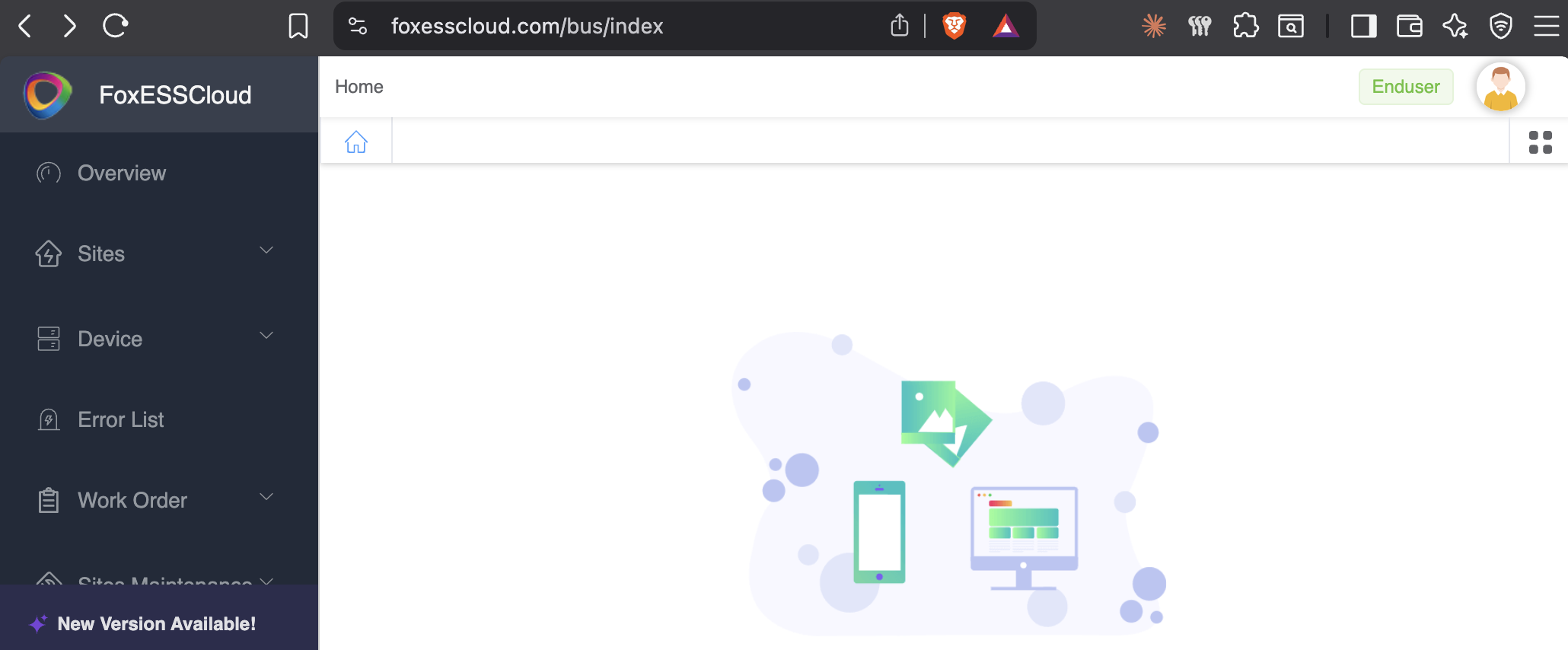
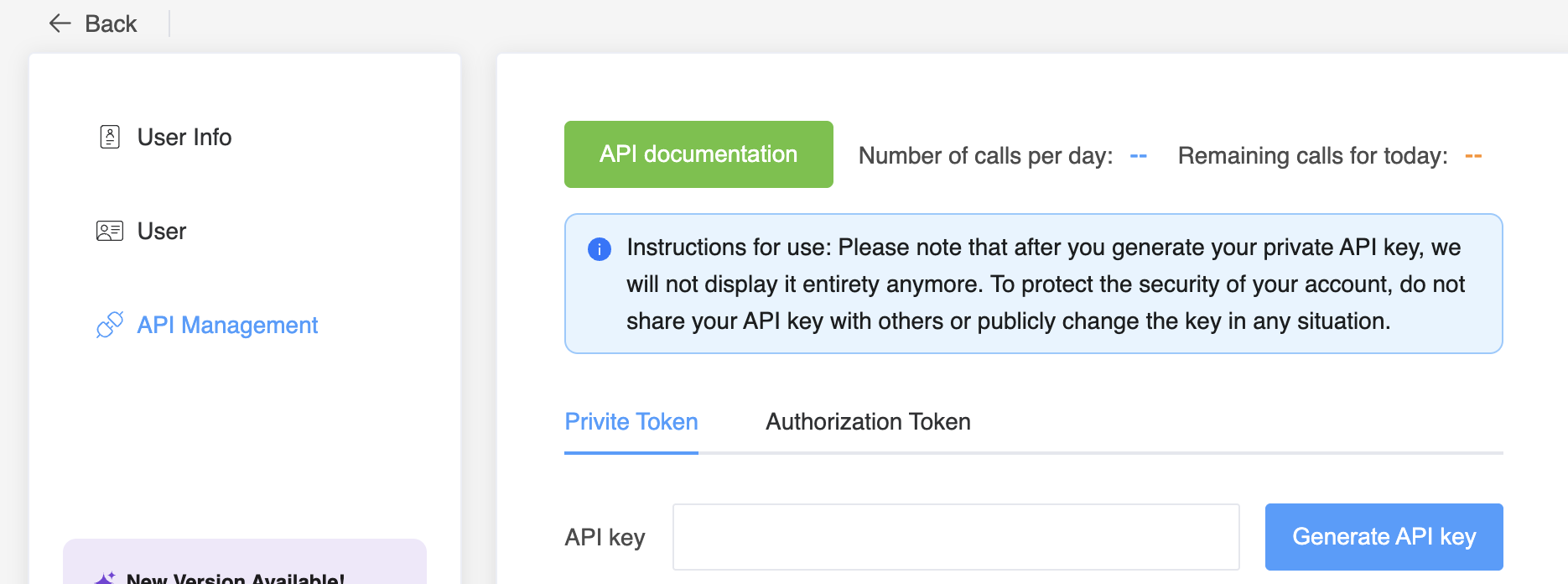
- In the API Management area, click on “Generate API key” and note it down somewhere safe
Next, how do you send a notification to a phone?
One of the easiest ways to send a notification to a phone is to send a Push Notification. This type of notification is linked to an app, so best to use an existing notification app that is tailor made for this purpose. I went with an old-school basic option, PushOver, but if you want something fancier you could go with PushCut.
With PushOver, you get an API key and you also send an email to a provided email address and the message will appear on your device. With the API key you can send a command from your Terminal similar to:
curl -s \
  -F "token=APP_TOKEN" \
  -F "user=USER_KEY" \
  -F "message=LLM alert" \
  https://api.pushover.net/1/messages.json
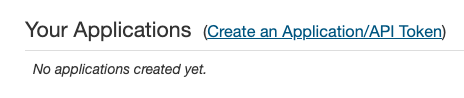
You will need to create an Application in Pushover
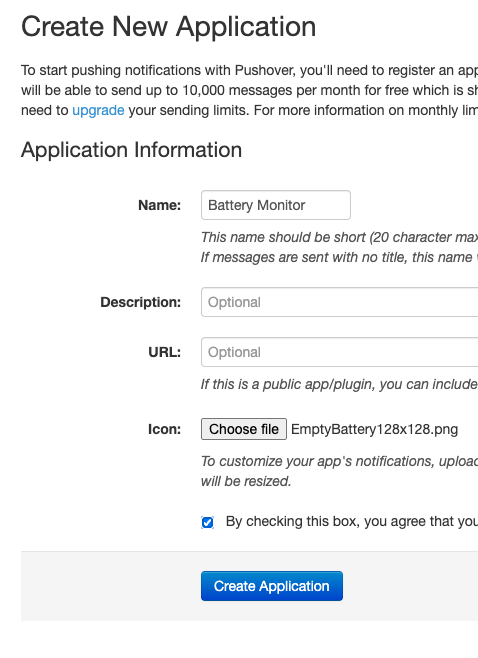
The icon I used was:
Bringing it together: Battery Monitor with Notification
Let’s go with Bash for this one.
.env file (replace the value placeholders with your values)
FOXESS_API_KEY=value
FOXESS_DEVICE_SN=value
PUSHOVER_TOKEN=value
PUSHOVER_USER=value
battery-alert.sh
#!/usr/bin/env bash

set -euo pipefail

source "$(dirname "$0")/.env"

SOC_THRESHOLD=10

foxess_query() {
   local path="$1" body="$2" ts sig
   ts=$(( $(date +%s) * 1000 ))
   sig=$(printf '%s\\r\\n%s\\r\\n%s' "$path" "$FOXESS_API_KEY" "$ts" | openssl md5 | awk '{print $NF}')

   curl -sf "https://www.foxesscloud.com${path}" \
   -H "token: $FOXESS_API_KEY" -H "timestamp: $ts" -H "signature: $sig" \
   -H "lang: en" -H "Content-Type: application/json" -d "$body"
}

echo "Running battery check for device ${FOXESS_DEVICE_SN}..."
soc=$(foxess_query "/op/v0/device/real/query" \
"{\"sn\":\"$FOXESS_DEVICE_SN\",\"variables\":[\"SoC\"]}" \
| jq '.result[0].datas[] | select(.variable=="SoC") | .value')

echo "Battery SoC: ${soc}%"
if (( $(echo "$soc <= $SOC_THRESHOLD" | bc) )); then
   curl -sf https://api.pushover.net/1/messages.json \
   -d "token=$PUSHOVER_TOKEN" -d "user=$PUSHOVER_USER" \
   -d "title=Battery Low" -d "message=Home battery SoC is ${soc}%. Using the grid." > /dev/null
   echo "Alert sent — SoC is at or below ${SOC_THRESHOLD}%."
else
   echo "No alert — SoC is above ${SOC_THRESHOLD}%."
fi
You can then run the script on a schedule on your Mac and it will tell you when the battery is low.

Optional Addition
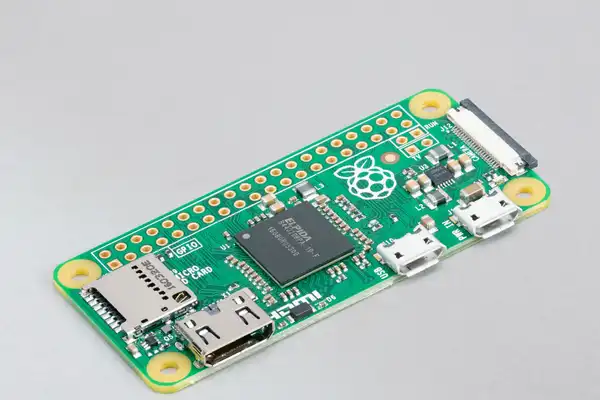
If you are interested in this type of geeky stuff, I’d suggest that you bring this to the next level. I, for example, run mine using a cron schedule (every 30 minutes during the day) on my Raspberry Pi Zero. I like the Zero as it uses 0.5 watts when it is running normally and peaks at about 2 watts when under heavy usage. Its so efficient that I leave it running 24/7 without worrying about it wasting electricity.